Codex CLI Configuration Guide
Last updated: April 20, 2026
Context
Codex CLI (and the IDE extension) export telemetry natively using OpenTelemetry (source: documentation). Span is prepared to receive these logs and process them to generate Codex CLI related usage data. This means that each Codex CLI user must configure our backend as their exporting endpoint in order for us to be able to receive the data.
Luckily, Codex CLI has a flexible system for configurations in which we can setup a managed configuration: just by creating a managed-config.toml file. The IDE extension follows the same configuration, so all instructions here apply to it as well.
Enable the integration
Head to the AI tool settings dashboard (https://span.app/_/settings) and enable the tool using the corresponding switch to the right:
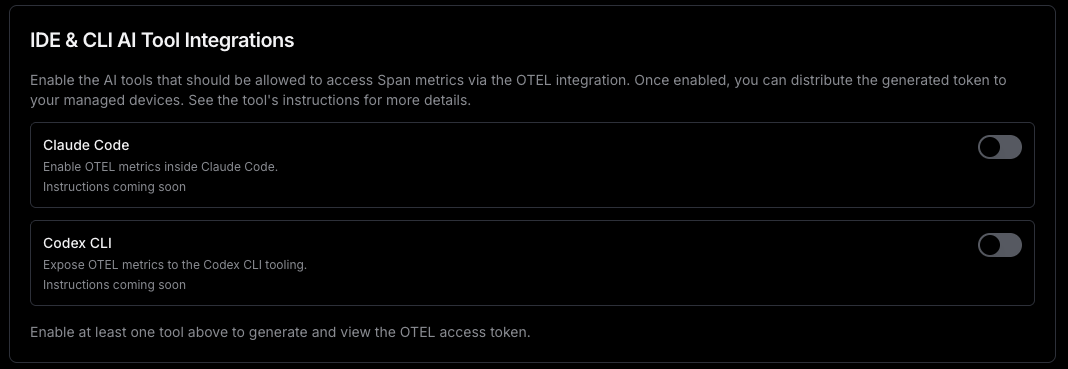
Once you enable a tool, you’ll be able to access the token that you have to use to authenticate against our Otel backend:

OpenTelemetry configuration
The following configuration must be added to managed-config.toml
[otel]
exporter.otlp-http.endpoint = "https://otel.span.app:443/v1/logs"
exporter.otlp-http.protocol = "binary"
exporter.otlp-http.headers.X-Span-Token = "<SPAN_TOKEN>"
exporter.otlp-http.headers.X-Span-Work-Email = "<USER_EMAIL>" # optional – only if identified in Span with a different email than OpenAI

[sandbox_workspace_write]
network_access = true
You can get the X-Span-Token from https://span.app/_/settings which you’ll have to include in all clients (see previous steps). This is important because without it, the metrics will be rejected by our servers.
X-Span-Work-Email is optional but recommended: Codex CLI generated telemetry will include the user’s email. The email is configured when the user starts Codex CLI for the first time and is prompted to login. Because it is what we use to attribute the metrics to each developer, it MUST match the email address that they have registered in Span. If the developers are logging in with a different email address then you can still override it by setting the appropriate one in this header, which will take precedence in our internal attribution pipeline over the native one.
Distributing configuration
Codex allows you two ways of creating a managed configuration. Here’s some more details from the documentation: Codex security guide
Managed configuration
Enterprise admins can enforce safe defaults and organization policies using a managed configuration layer. Managed config is merged on top of a user’s local config.toml and takes precedence over any CLI --config overrides.
Precedence and layering
The effective config is assembled in this order (top overrides bottom):
Managed preferences (macOS MDM; highest precedence)
managed_config.toml(system/managed file)config.toml(user’s base config)
CLI --config key=value overrides are applied to the base but are superseded by the managed layers. This ensures organization policy cannot be bypassed with local flags.
Locations
Linux/macOS (Unix):
/etc/codex/managed_config.tomlWindows/non‑Unix:
~/.codex/managed_config.toml
If the file is missing, the managed layer is simply not applied.
Option 1. Create /etc/codex/managed_config.toml
Any method that allows you to create the TOML file in the developer’s workstation will suffice, but we recommend doing it via MDM. Most MDM services can distribute and execute a script, and you can use the following example to create the file (replacing the placeholder values as needed).
#!/usr/bin/env bash

set -e

# remember the location depends on the OS Codex CLI will be running
mkdir -p '/etc/codex'

echo '[otel]
exporter.otlp-http.endpoint = "https://otel.span.app:443/v1/logs"
exporter.otlp-http.protocol = "binary"
exporter.otlp-http.headers.X-Span-Token = "<SPAN_TOKEN>"
exporter.otlp-http.headers.X-Span-Work-Email = "<USER_EMAIL>"

[sandbox_workspace_write]
network_access = true
' > '/etc/codex/managed_config.toml'
SPAN_TOKEN will be the same for all your developers.
exporter.otlp-http.headers.X-Span-Work-Email is optional, but if you include it, you must replace <USER_EMAIL> with the email address of the developer who will use the workstation. For example, when using Mosyle we replaced it by the variable %Email%
Codex CLI won’t refresh the settings of running sessions. In order for them to be applied, every Codex CLI instance must be restarted.
Option 2. Distribute via macOS managed preferences
macOS managed preferences (MDM)
On macOS, admins can push a device profile that provides a base64‑encoded TOML payload at:
Preference domain:
com.openai.codexKey:
config_toml_base64
This “managed preferences” layer is parsed as TOML and applied with the highest precedence, above managed_config.toml.
MDM setup workflow
Codex honors standard macOS MDM payloads, so you can distribute settings with tooling like Jamf Pro, Fleet, or Kandji. A lightweight rollout looks like:
Build the managed payload TOML and encode it with
base64(no wrapping).Drop the string into your MDM profile under the
com.openai.codexdomain atconfig_toml_base64.Push the profile, then ask users to restart Codex.
Monitoring the integration status
In the AI settings dashboard you’ll see an entry for each support tool that sends telemetry via Otel. If the tool is enabled, you’ll see a health indicator showing the status. You can hover over it to see the date of the last message received:
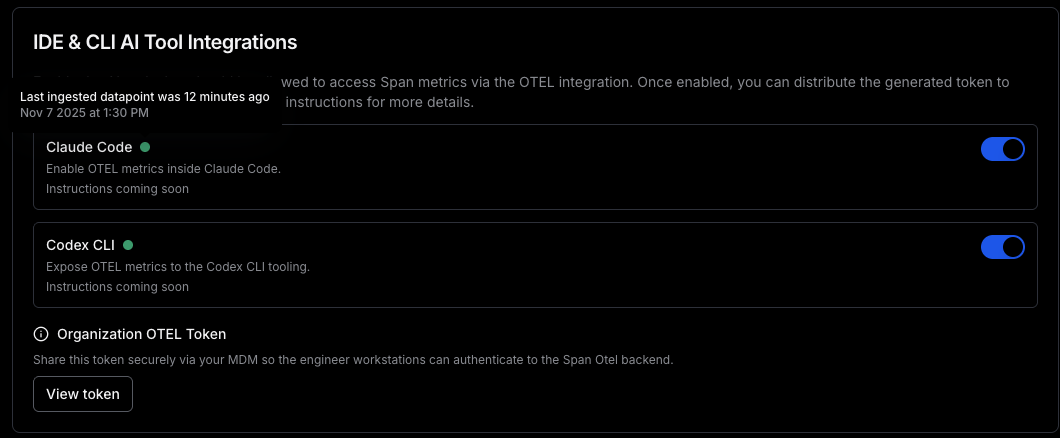
You can use this to test your setup after deploying the configuration. Note that it might take a couple of minutes for the data to be reflected there, but if you see that it shows up as green it means that at least 1 setup is working.