Span Coding Hooks: IT Admin User Guide
Last updated: May 15, 2026
This guide is for IT administrators deploying the Span Coding Hooks package to employee macOS machines via MDM. Windows and Linux support is coming soon.
Supported MDM platforms: Mosyle, Workspace ONE
What This Package Does
Span Coding Hooks captures AI coding activity (prompts, file edits, tool use) from supported IDEs (currently Cursor and Claude Code) and sends telemetry to Span’s analytics backend. This data appears in your Span dashboard as AI tool usage metrics.
The package installs silently in the background. Employees will not see any notifications or UI changes. Their IDEs continue to work exactly as before.
Prerequisites
Before deploying, you need:
A Span account with access to the integrations settings page.
Your MDM (Mosyle or Workspace ONE) configured to manage the target macOS devices.
The
coding-hooks-{version}.pkgfile: shared directly by your Span account team.
Deployment Steps
Step 1: Enable the Integration and Get Your Token (this needs to be done once)
This step is the same regardless of your MDM.
Head to the AI tool settings dashboard (https://span.app/_/settings/integrations) and under IDE & CLI AI Tool Integrations, enable the tools your engineers use. Here is what each tool supports:
Tool | What’s captured |
Claude Code | OTEL metrics + hooks |
Cursor | Hooks |
Codex CLI | OTEL metrics |
Note: The Cursor integration does not yet have a toggle in the dashboard. If your engineers use Cursor, enable Claude Code or Codex CLI to generate the token — the token is shared across all tools and is required by the package regardless of which IDEs you are deploying for.
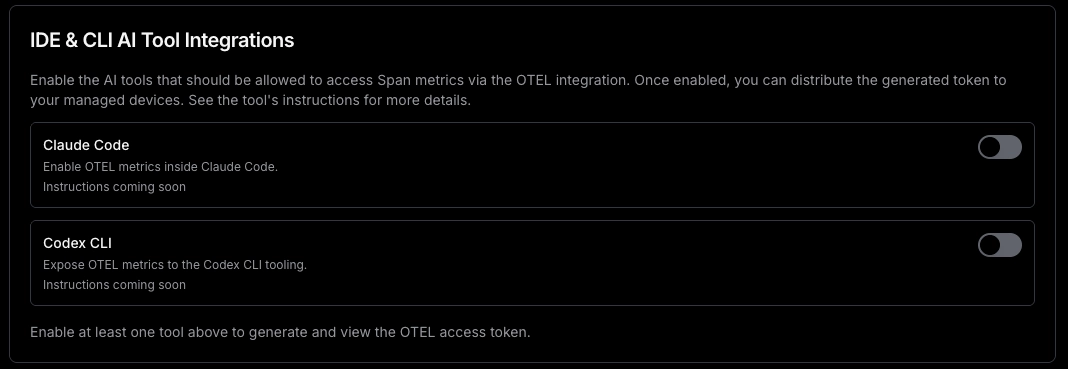
Once you enable a tool, you’ll be able to access the token that you have to use to authenticate against our Otel backend:

Step 2: Deploy Span Configuration File via MDM
The hook installer reads authentication credentials from a span configuration file that you must deploy separately. This file tells the Otel Collector how to authenticate with Span.
Important: Deploy this Custom Command script before or alongside the .pkg installer. The .pkg reads this file at install time to configure the OTel Collector with the correct token and employee email.
Note: The token (<YOUR_TOKEN>) is the same for all employees. Only the email changes per device, and it is substituted automatically by your MDM.
Script : replace <YOUR_TOKEN> with the token from Step 1, and <EMAIL_VARIABLE> with the email variable for your MDM (see note below):
#!/bin/bash
set -e

mkdir -p '/Library/Application Support/app.span.coding-hooks'

echo '{
  "span_auth_token": "<YOUR_TOKEN>",
  "work_email": "<EMAIL_VARIABLE>"
}' > '/Library/Application Support/app.span.coding-hooks/span-config.json'

chown root:staff '/Library/Application Support/app.span.coding-hooks/span-config.json'
chmod 640 '/Library/Application Support/app.span.coding-hooks/span-config.json'
MDM | Email variable |
Mosyle |
|
Workspace ONE |
|
How to deploy:
Mosyle: Create a Custom Command, paste the script, assign to your target device group(s), and trigger it.
Workspace ONE: Go to Resources → Scripts, click Add, then configure:
Platform: macOS
Execution Context: Root
Script body: paste the script above
Assign it to your target Smart Group and trigger it.
Step 3: Deploy the Package
Note: Ask Span team to share the latest package coding-hooks-{version}.pkg for this step
Mosyle
In Mosyle, go to Management → Install PKG.
Click Add and upload
coding-hooks-{version}.pkg.[Optional but recommended] In the Pre-Install Script field, paste the same script from Step 2 with the required values already filled in. This ensures the credentials file is created immediately before the package installs, even if the Step 2 Custom Command has not yet executed on the device.
Assign the package to the target device group(s) or all devices.
Mosyle will install the package automatically on assigned devices during the next MDM check-in.
Workspace ONE
In Workspace ONE, go to Resources → Apps → Native.
Click Add Application → Internal.
Upload
coding-hooks-{version}.pkg.Set Deployment Type to Auto so it installs silently without user interaction.
[Optional but recommended] In the Scripts tab, paste the same script from Step 2 into the Pre-Install Script field with the required values already filled in. This ensures the credentials file is created immediately before the package installs, even if the Step 2 script has not yet executed on the device.
Assign the app to the same Smart Group(s) used in Step 2.
Workspace ONE will push and install the package automatically on assigned devices during their next check-in.
No additional configuration is required. The installer runs automatically after the package is deployed and handles everything.
Step 4: Smoke Test (before fleet rollout)
Before assigning the configuration script (Step 2) and package deployment (Step 3) to your full fleet, validate the end-to-end flow on 1–2 pilot devices. This helps catch token typos, incorrect email variables, and deployment issues with minimal impact.
Mosyle
Create a temporary test device group (or use an existing pilot group) with 1–2 pilot devices, ideally your own device and one teammate’s.
Assign the Step 2 Custom Command and the Step 3 package deployment only to the pilot device group.
Trigger a Mosyle check-in on each pilot device, or wait for the next automatic MDM check-in.
Confirm the configuration file was written successfully:
cat '/Library/Application Support/app.span.coding-hooks/span-config.json'
This should print JSON containing the pilot user’s email and the configured Span token.
In the Mosyle console, confirm:
The Custom Command completed successfully.
The package deployment shows as installed for the pilot devices.
Confirm the package installed on each pilot device:
pkgutil --pkg-info app.span.coding-hooks
This should print a package-id, version, and install-time. If it errors with No receipt for 'app.span.coding-hooks' found, the package did not install.
Run the health check on each pilot device and confirm every component is green. All checks should pass, and the exit code should be
0:
~/.span/bin/span-health
Once both pilot devices pass the steps above, assign the configuration script and package deployment to your production device groups.
Workspace ONE
Create a temporary pilot Smart Group with 1–2 pilot devices, ideally your own device and one teammate’s.
Assign the Step 2 script and the Step 3 Internal app deployment only to the pilot Smart Group.
Trigger a Workspace ONE device sync on each pilot device, or wait for the next automatic check-in.
Confirm the configuration file was written successfully:
cat '/Library/Application Support/app.span.coding-hooks/span-config.json'
This should print JSON containing the pilot user’s email and the configured Span token.
In the Workspace ONE console, confirm:
The Step 2 script shows successful execution under:
Devices → Scripts → Script ResultsThe Internal app deployment shows successful installation under:
Resources → Apps → Native
Confirm the package installed on each pilot device:
pkgutil --pkg-info app.span.coding-hooks
This should print a package-id, version, and install-time. If it errors with No receipt for 'app.span.coding-hooks' found, the package did not install.
Run the health check on each pilot device and confirm every component is green. All checks should pass, and the exit code should be
0:
~/.span/bin/span-health
Once both pilot devices pass the steps above, assign the Step 2 script and Step 3 Internal app deployment to your production Smart Groups.
If any step fails, see the Troubleshooting section before proceeding to fleet rollout.
What Employees Will See
Nothing 🙂, the installation is completely silent:
No installer window or prompts appear.
No new applications or icons are added.
Cursor and Claude Code continue working exactly as before.
Employees using Claude Code may notice that telemetry is enabled if they inspect their Claude Code settings, but there is no visible change in the IDE itself.
The OTel Collector runs as a background system service (LaunchDaemon) and is not visible in the macOS menu bar or Dock.
Verifying the Deployment
The installer runs a full health check at the end of every install. How to review results depends on your MDM:
Mosyle
Check the Custom Command output in the Mosyle console per device. No manual SSH required.
Workspace ONE
Script results: go to Devices → Scripts → Script Results to see per-device health check output.
App deployment status: go to Resources → Apps → Native and check the assignment status to confirm the package was delivered to each device.
Upgrading
When a new version of the package is available:
Mosyle: Upload the new coding-hooks-{version}.pkg under Management → Install PKG and assign it to the same device groups.
Workspace ONE: Go to Resources → Apps → Native, upload the new package as a new Internal app version, and assign it to the same Smart Groups.
The installer handles upgrades cleanly: it replaces only Span’s hooks in the Cursor and Claude Code configs, leaving any user-configured hooks untouched.
Uninstalling
Script — deploy this via your MDM as described below:
#!/bin/bash
set -e
bash "/Library/Application Support/app.span.coding-hooks/uninstall.sh"
rm -f '/Library/Application Support/app.span.coding-hooks/span-config.json'
Mosyle: Create a Custom Command with the script above and assign it to the target devices.
Workspace ONE: Go to Resources → Scripts, click Add, and configure:
Platform: macOS
Execution Context: Root
Script body: paste the script above
Assign to the target Smart Group and trigger it.
User-defined hooks in Cursor and Claude Code are preserved by both uninstall methods.
User self-uninstall (for individual opt-out or troubleshooting)
bash "/Library/Application Support/app.span.coding-hooks/uninstall.sh"Troubleshooting
Health check
Run the health check tool on the affected machine. It checks all components and shows exactly what is and isn’t working:
~/.span/bin/span-health
Share the output with the Span team if you need further assistance.
Installer log
The installer log has additional context for issues that occurred during initial setup:
cat /var/log/span-coding-hooks-install.log
Reinstallation
The installer is safe to run multiple times. Reinstalling will update the hook dispatcher and OTel Collector without touching any user IDE configuration outside of Span’s own hooks.
Support
For issues not covered here, contact the Span team with the following from the affected machine:
# Health check
~/.span/bin/span-health

# Installer log
cat /var/log/span-coding-hooks-install.log

# Config file — redact the token value before sharing
cat '/Library/Application Support/app.span.coding-hooks/span-config.json'